



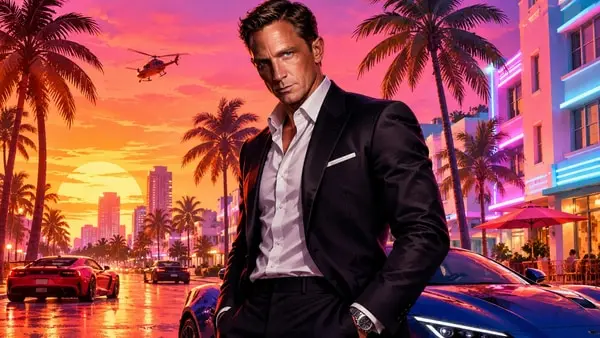
The Grand Theft Auto 6 (GTA 6) craze has sparked a new AI photo-editing trend on social media, with users turning their everyday photographs into colourful video game-inspired portraits. It has been popular among Instagram and WhatsApp users and recreates the same graphics and ambience of Vice City with neon lights, palm trees, luxurious cars and dramatic sunsets. Users can create these images by uploading their photographs to AI tools such as ChatGPT and Google Gemini and entering detailed image-generation prompts.
The trend is an easy way to design personalised gaming posters without the assistance of professional editing software or design skills. From a character poster inspired by GTA 6 to a portrait with a beach background or a neon-lit cityscape, a good prompt can help make your image more successful. Here are some instructions for making these images and pre-made prompts for both platforms.
How to create GTA 6-style photos using ChatGPT
Users can transform their existing photographs into video game-inspired portraits using ChatGPT's image-generation feature. According to the official OpenAI Help Centre, users can upload an image and specify what they wish ChatGPT to alter.
Follow these steps:
- Open ChatGPT on your smartphone or computer.
- Upload a clear photograph using the attachment option.
- Copy and paste one of the prompts below.
- Ask ChatGPT to generate the image.
- Give additional instructions if you want to change the background, outfit or lighting.
- Save the final image and share it on WhatsApp or Instagram.
Best GTA 6 AI photo prompts for ChatGPT
Prompt 1: GTA 6 character poster
Transform my uploaded photograph into a Grand Theft Auto 6-inspired character poster. Preserve my facial identity, face shape, hairstyle and skin tone. Show me standing confidently on a colourful Vice City-inspired street. Add palm trees, pastel buildings, luxury cars, neon signs and a dramatic sunset. Use vibrant colours, cinematic lighting and detailed video game promotional artwork aesthetics. No text, logos or watermark.
Prompt 2: GTA 6 realistic gameplay screenshot
Use my uploaded photograph as the reference. Preserve my recognisable facial features and hairstyle. Transform me into a realistic open-world video game character walking through a Miami-inspired street. Add palm trees, sports cars, colourful buildings and pedestrians. Use realistic game-engine graphics, cinematic camera angles and warm evening lighting. Make it look like a video game screenshot, not an ordinary photograph. No text or logos.
Prompt 3: GTA 6 Sunset Beach Portrait
Turn my uploaded photograph into a cinematic Vice City-inspired beach scene. Keep my original facial features and identity intact. Place me on a beautiful beach with palm trees, ocean waves, luxury beachfront properties and a colourful pink-orange sunset. Use fashionable summer clothing, golden-hour lighting and vibrant video game illustration aesthetics. No text or watermark.
How to create GTA 6-style photos using Google Gemini
Google Gemini also has AI capabilities for editing images. Photographs can be uploaded, and instructions can then be given to change the background, add an object or transform the picture. Google's official documentation provides an explanation of this process via its image generation and editing capabilities, Gemini.
Here is how to get started:
- Open the Google Gemini website or mobile application.
- Select the image-generation option.
- Upload your photograph.
- Enter a detailed GTA 6-inspired prompt.
- Submit the request and review the generated image.
- Ask Gemini to make corrections if necessary and download the final result.
Best GTA 6 AI photo prompts for Google Gemini
Prompt 1: GTA 6 loading screen artwork
Convert my uploaded photograph into a Grand Theft Auto 6-inspired loading screen illustration. Preserve my facial identity and hairstyle. Use bold outlines, rich colours and detailed digital painting. Show me posing confidently against a Vice City-inspired skyline with palm trees, luxury cars and a pink-orange sunset. Use a vertical 4:5 composition. No text, logos or watermark.
Prompt 2: GTA 6 Neon Night City
Use my uploaded photograph as the main reference. Preserve my facial identity. Reimagine me as a character in a neon-lit Vice City-inspired street at night. Place me beside a sports car on a rain-soaked road. Add colourful neon lights, tall buildings, palm trees and reflections. Use cinematic lighting, realistic video game graphics and vibrant colour grading. No text or logos.
Prompt 3: GTA 6 character portrait
Transform my uploaded photograph into a GTA 6-inspired character selection portrait. Preserve my face, hairstyle, skin tone and expression. Show me standing confidently with folded arms in fashionable streetwear. Add palm trees, modern buildings and a sports car in the background. Use bold illustrated details, cinematic lighting and vibrant colours. No text, logos or watermark.
Tips to get better GTA 6 AI-generated photos
The original photograph and the quality of the prompt can influence the final output. Users should consider a few things before generating their images:
- Use clear photos: Use well-lit photographs with faces clearly visible.
- Don't use too heavy filters: Original photographs may give more reference information.
- Describe the background: Specify whether you want a beach, city street or sunset.
- Talk about the image style: State cinematic, illustrated and realistic game graphics.
- Ask for corrections: When AI modifications alter your face, request the AI to keep your facial details.